You set up a car, pick a track, and press one button. RaceVoice does the rest — calling your corner speeds out loud so your eyes stay up, recording every lap, and turning the session into video you can actually learn from. Here's the whole app, screen by screen, the same tour you get the first time you open it.
RaceVoice is your in-car driving coach — Go Fast. With the Speed of Voice. Patented voice-guidance technology (U.S. Patent 11,151,900) calls out your corner speeds, lap-time deltas, and segment splits in real time — so you keep your eyes on the track, not the dashboard. This is the guided tour: every main screen, what it shows, and how to use it.
Get Ready: three steps from the home screen
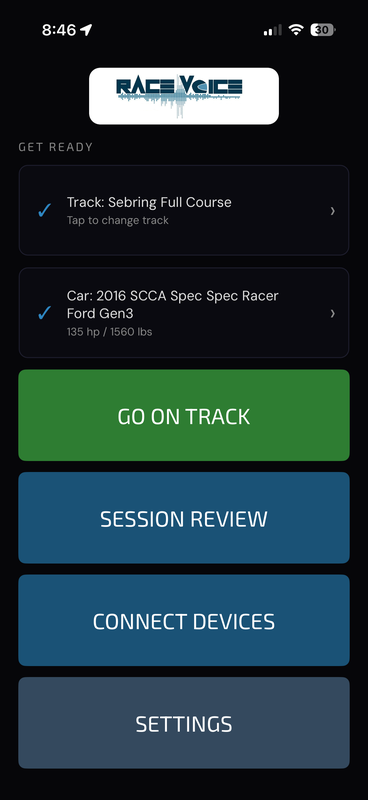
Everything starts here. RaceVoice works in three steps: set up your Car in Settings (make, model, weight, power), select your Track from the 250+ built-in tracks, and press GO ON TRACK to start a session. The two Get Ready cards show your current track and car — a blue check means each is set. The buttons below open Session Review, Connect Devices (Bluetooth sensors and external GPS), and Settings. Once both cards are checked, you're ready to drive.
Select Your Track
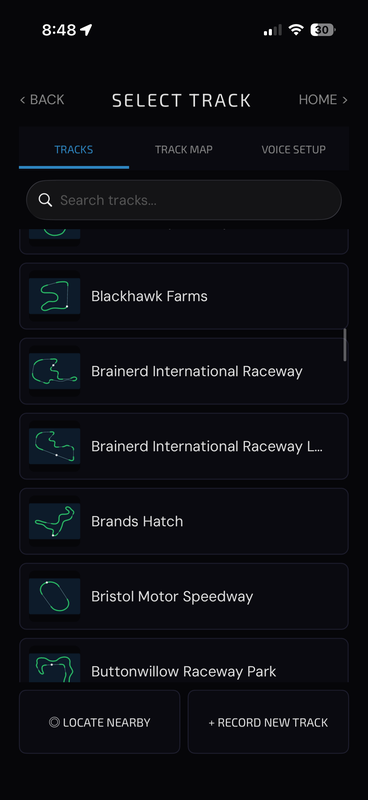
This is where you choose the circuit for your session. Type in the search box to filter the built-in library of 250+ tracks, each shown with a map thumbnail. The tabs switch between the track list, the Track Map, and Voice Setup for the selected track. No track near you in the list? LOCATE NEARBY finds the closest one by GPS, and + RECORD NEW TRACK lets you drive a lap to capture a custom track of your own.
Track Map & Segments
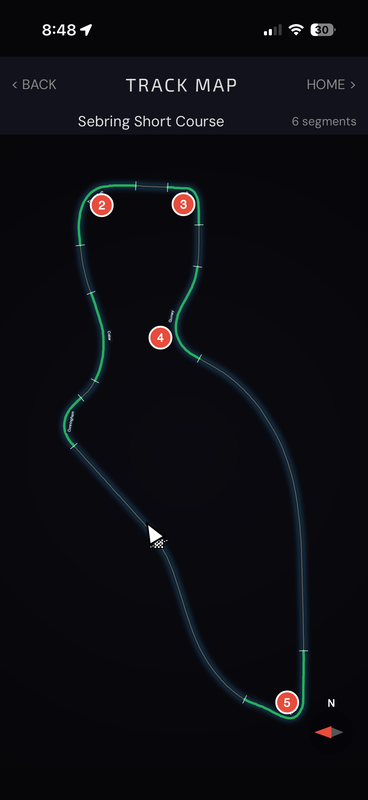
The Track Map shows the GPS outline of your selected track. The numbered red markers are the start of each timed segment; the green portions are the zones where RaceVoice measures your entry, minimum, and exit speeds. These segments are the backbone of the whole app — they drive your voice coaching, the split times in Data Review, and the highlight and blooper clips in Video Studio. The count in the top corner tells you how many segments a track has.
Voice Prompts
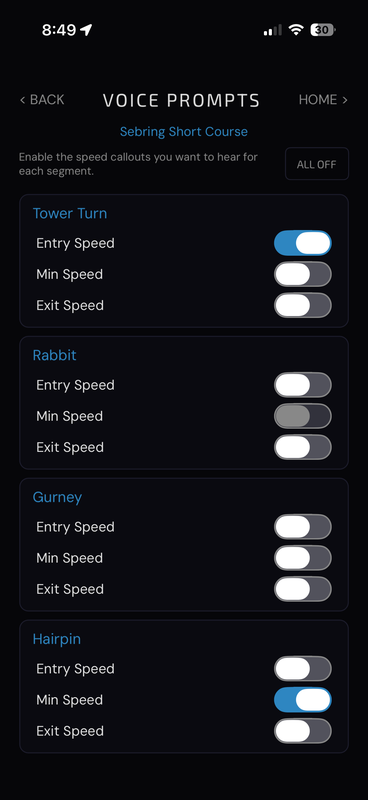
This is where you decide what your coach says. For each segment you can independently turn on Entry Speed (announced as you enter), Min Speed (your slowest speed through the corner), and Exit Speed (as you accelerate out). Enable only the callouts that matter so you're never overloaded mid-corner; ALL OFF clears everything at once. The free version lets you enable one callout at a time — upgrade to set multiple prompts across the whole track.
Live Coaching: the on-track screen
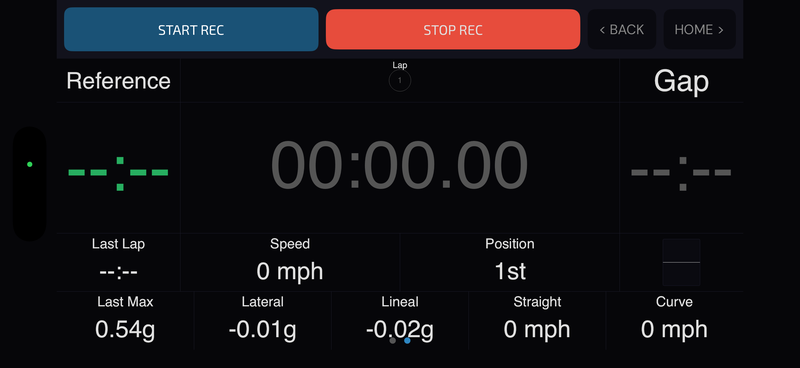
This is what you see while you drive, in landscape. The large center clock is your running lap time. Reference and R Gap compare you against your best lap in real time — instantly, so you know if this lap is up or down. Around the clock: last lap, live speed, track position, peak and live G-forces, and straight/curve speeds. Tap START REC to capture GPS telemetry — plus camera video with live overlays if a camera is enabled — while RaceVoice speaks your enabled callouts. STOP REC ends and saves the session.
Session Review
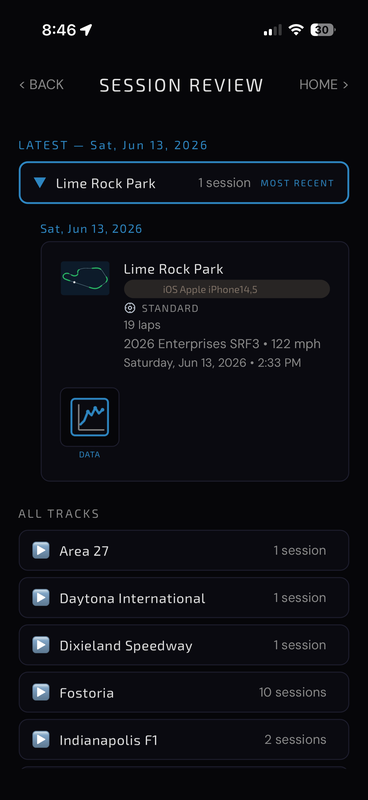
Back off track, Session Review is your library of recorded sessions. The Latest card highlights your most recent outing — track, car, lap count, top speed, and date. Below it, All Tracks lists every track you've run with a session count; tap one to expand its sessions. The DATA button on a session opens the lap charts and segment splits, and from there you can jump straight into Video Studio.
Compare Laps
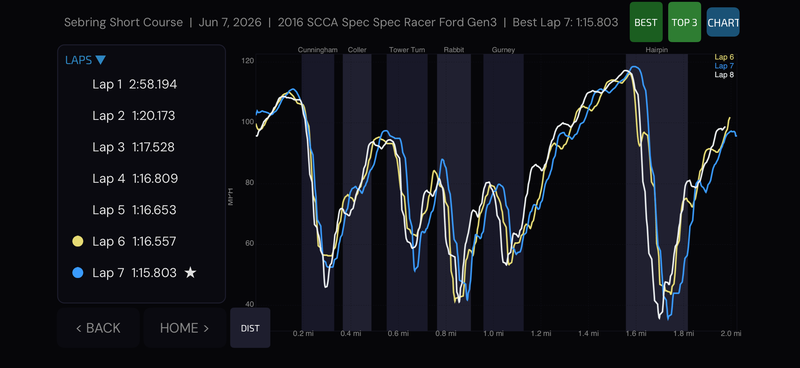
The Chart view plots speed against distance (or time) for the laps you pick, overlaying them so you can see exactly where you gained or lost speed. The lap list stars your fastest lap, and colored dots mark which laps are drawn. The shaded vertical bands are your named segments. Use BEST to focus on your quickest lap, TOP 3 to compare your three best, and the DIST/TIME toggle to switch the X-axis.
Segment Splits
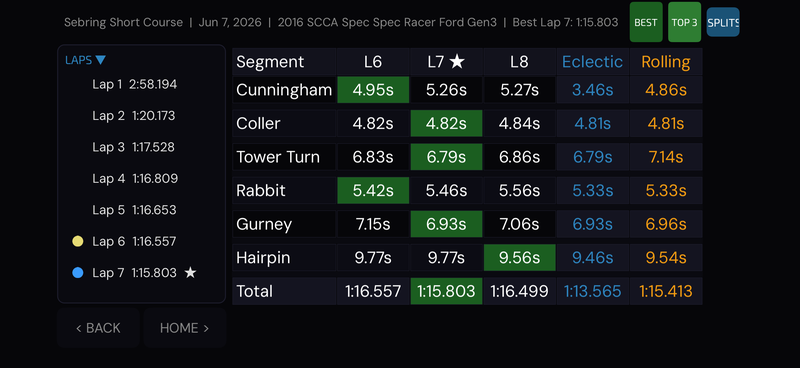
This is where you find the time. The Splits table breaks each lap into per-segment times so you can see exactly which corners are costing you — each segment's quickest time is highlighted green. The Eclectic column stitches your fastest-ever time in every segment into a theoretical perfect lap, and Rolling shows your best achievable rolling lap. The Total row sums each column, so you can measure your real laps against your ideal one.
Video Studio
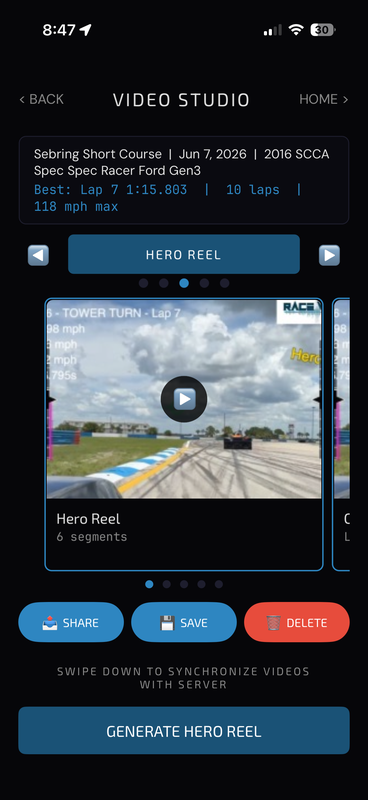
Video Studio turns a session into finished, shareable video from your camera footage with the telemetry burned on top. Use the swipe selector to pick Best Lap, a Hero reel of your fastest segments, a Bloopers reel of your slowest, a Side-by-Side comparison, or the Full Session, then tap GENERATE. The card carousel shows the composite reel first, then each segment clip — swipe through, tap a thumbnail to play full screen, and Share / Save / Delete the focused clip. Save writes to your photo library; Share opens the system share sheet.
Video Playback
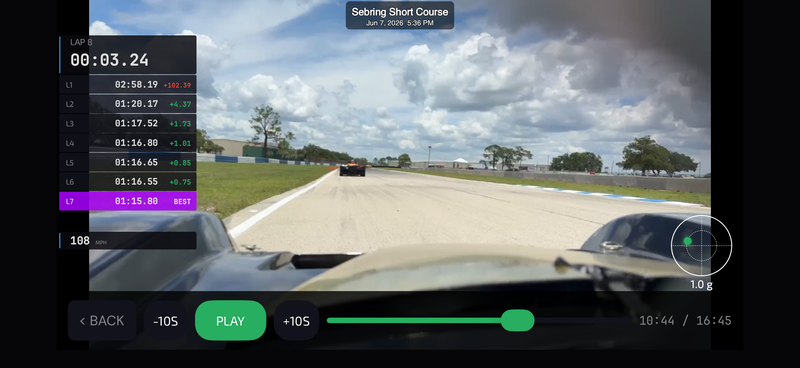
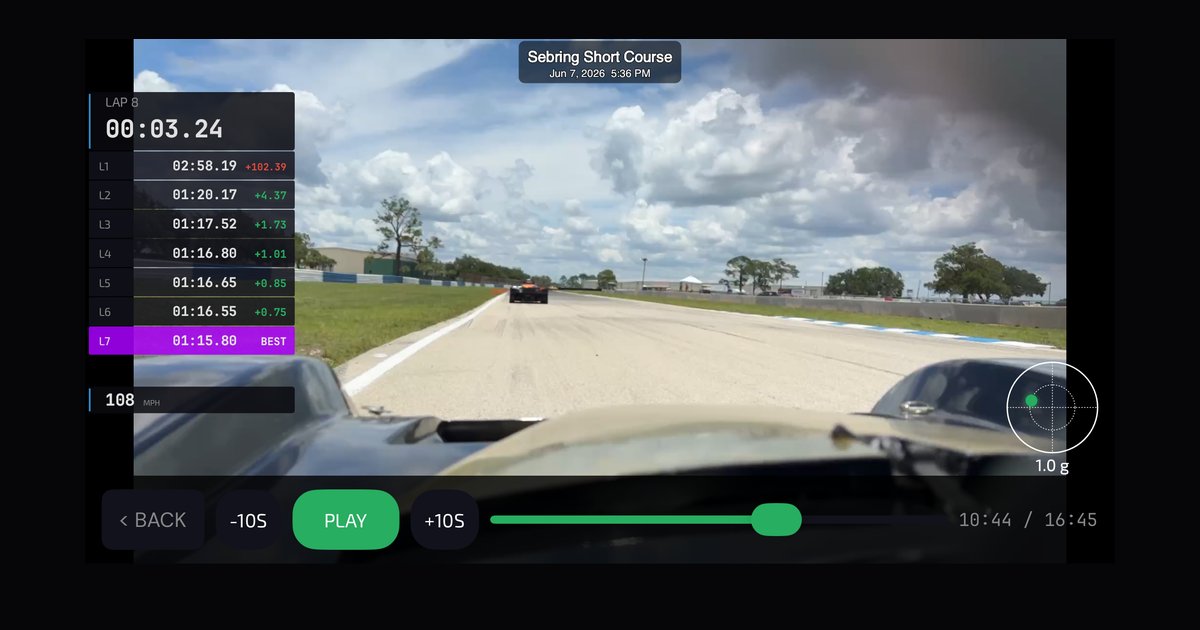
Finally, the player replays your footage with synchronized telemetry painted on top: a timing tower of your laps with deltas, the running lap clock, a live G-force meter, and a minimap marking your position on track. Use PLAY/pause, the −10S / +10S skip buttons, or drag the scrubber to move through a lap. It's the best way to connect what the car was actually doing to the numbers on the charts.
That's the whole loop
Set up your car, pick your track, choose your callouts, and drive — eyes up, coach in your ear. Come in, review your laps and splits to find where the time is, generate a video to see it, and go back out faster. That's RaceVoice end to end, and it all runs on the phone in your pocket.
Follow along as I build RaceVoice in public.
#RaceVoice · #DriveFasterEyesUp · #SpeedOfVoice · #Motorsport · #DriverCoaching · #MotorsportTech · #HPDE · #SpecRacerFord