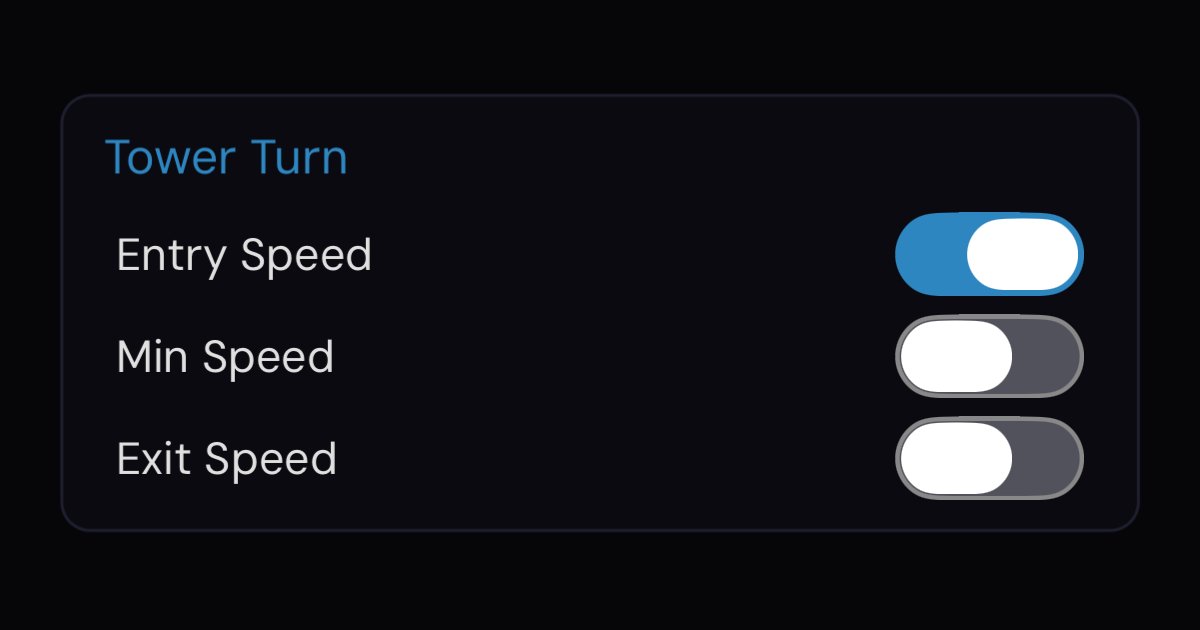
Here's something most track-day drivers have never actually experienced: a coach in the car with you that doesn't say a word about what to do — it just tells you, out loud, how fast you went where it counts. No screen to read. No "brake later." Just your own speed, spoken at the exact corner it happened. If you've never heard one, that probably sounds abstract. So in this post you're going to hear it — real RaceVoice audio, the same clips the app plays in the car — and see exactly how you set it up. Eyes up. Let the car talk.
What an in-car speed coach even is
Picture how the pros do it. The car streams real-time telemetry back to the pit; a driving coach watches the data and, at the right instant, keys the radio: "you were doing fifty-two through there." That single number — relayed while the corner is still fresh — is what lets the driver find a little more next lap. It works, but it's a complex, expensive setup: a telemetry system, a data engineer or coach, a radio link. Almost no track-day driver has access to it.
RaceVoice does that job for you. It's the coach, the telemetry, and the radio in one — automated, on your phone, for any of 250+ built-in tracks (or one you record yourself). It watches your GPS and speaks your speed at the corners you chose, the instant you reach them — so the whole apparatus collapses into one spoken number, at the one moment you can use it.
That's the patented idea at the core of the product (U.S. Patent 11,151,900): mark the sections of a track beforehand, then announce the car's own behavior out loud the instant you reach them. It isn't an opinion engine. It's a fact, returned to you, on time.
The three numbers that decide a corner
Every corner really comes down to three speeds:
- Entry — the speed you carry in as you turn in.
- Minimum — your slowest point, the apex. This is the big one: your minimum speed is the starting speed for the whole next straight, and a couple of extra mph there compounds all the way down it.
- Exit — the speed you're back up to as you track out.
Enough description — here is what each one actually sounds like coming through the car. These are real RaceVoice clips, not stand-ins. Press play.
Entry:
Minimum (the apex number that matters most):
Exit:
Notice the cadence — "Minimum… sixty-four" lands as one clean phrase, not two robotic chunks. The number is stitched seamlessly onto the word so it registers in a glance-free instant, while your hands are full.
You pick which callouts you want — per corner
You're in control of what the car says, corner by corner. On the Voice Prompts screen you see every segment of the track with three switches each — Entry, Min, Exit — and you simply turn on the ones you want to hear.
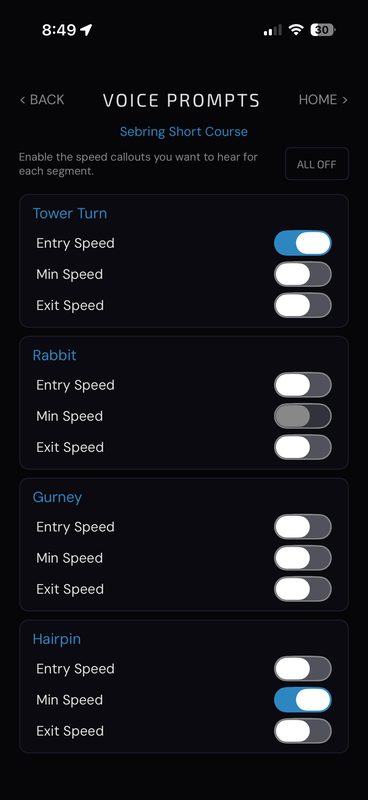
Each corner, three switches. Here Tower Turn is set to call entry speed and the Hairpin is set to call minimum speed. One "All Off" button kills every callout if you want silence.
A word of advice that the screen quietly encourages: don't turn on everything at once. Start with one number on your one problem corner — usually minimum speed — and actually use it. A single, well-chosen callout you act on every lap beats a wall of chatter you tune out.
How it maps to the track
Those switches aren't abstract — each one is tied to a real stretch of pavement. Before you drive, the lap is broken into segments, each a START point and a STOP point on the GPS line. On the built-in tracks the corners are already marked for you; you just flip on the callouts.
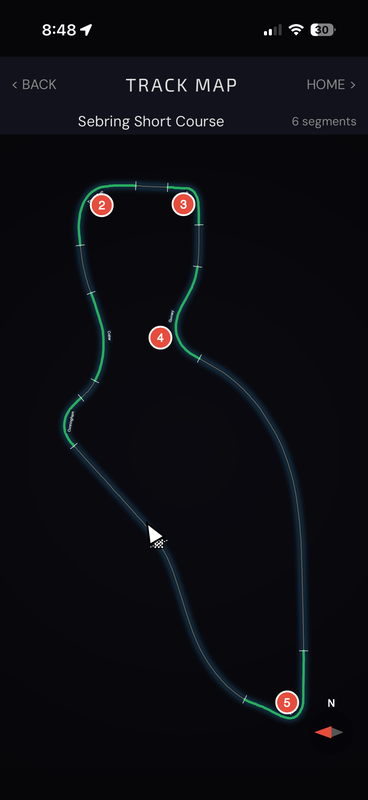
The same Sebring Short Course lap, seen as a map. Every green-highlighted, numbered stretch is one segment — a START/STOP pair — and it lines up one-to-one with a row on the Voice Prompts screen. Tap a segment right on the map to toggle its callouts, too.
Out on track the logic is almost embarrassingly direct. The phone reads GPS several times a second. The moment you cross a segment's START, the app captures your entry speed; while you're inside it tracks the minimum; when you cross STOP it captures the exit — then speaks whichever ones you switched on. (It only ever reads sane numbers, so a pit-lane crawl or a GPS hiccup never gets announced.) The number meets you slightly ahead of the action, every time, because the segment carries a short lead-in and lead-out.
How to actually hear it in your HPDE car
This is the part people ask about most, and it's simpler than you'd think: your phone is the coach, and the callouts go wherever your phone's audio already goes. Mount the phone where it has a clear view of the sky for GPS, start your session, and pick how you want to listen.
The easy way — Bluetooth to your car stereo. Pair your phone to the car the same as you would for music or navigation. The callouts come through your speakers exactly like a nav prompt — short, loud, and clear. For most HPDE cars with a working head unit, this is all you need. Nudge the volume up a touch so a quick "minimum… fifty-two" cuts cleanly over engine and tire noise.
The loud-car way — in-helmet speakers or an earbud. Stripped interior, open exhaust, earplugs in? Bluetooth speakers may not cut it. Drivers in louder cars run the audio into in-helmet speakers (a simple helmet-comms kit) or a single earbud so the callout lands right in your ear over everything else. One important note: follow your event's and club's rules on in-ear audio — many HPDE organizations have specific guidance on earbuds and driver comms, so check before you run.
Either way, the setup is the same on the app side. You picked your corners and your callouts on the Voice Prompts screen; the car does the rest. No looking down, no fiddling at speed — just your own speed, in your ear, at the corner where it still matters.
That's what an in-car speed coach is. Not a robot backseat driver telling you what to do — a calm voice handing you back the one number you just earned, in time to do something with it. Give your ears the coaching and keep your eyes on the track.
Follow along as I build RaceVoice in public.
#RaceVoice · #DriveFasterEyesUp · #SpeedOfVoice · #Motorsport · #DriverCoaching · #MotorsportTech · #HPDE · #SpecRacerFord